2026/06/01追記
このページの内容は2026年6月時点ではそのまま適用できない箇所があります。
ONTAP OS 9.17.1の情報をまとめた「ONTAPシミュレータの新規導入手順」を参照のこと
いままでONTAP シミュレータってアップデートできないものだ、と思っていたのですが、ぐぐってみたらアップデートできる、という手法を発見。実践してみた。
2022/10/07追記: ONTAP 9.7→9.8P12→9.10.1P6 といったアップデートも条件によっては可能でした→詳細(ONTAPシミュレータを9.7から9.10.1にアップデートしようとしたらIllegal instructionとwaiting until daemon ktlsd starts upで失敗した)
2023/11/21追加: ONTAP9.5→9.7→9.8→9.11.1 アップデートも仮想マシンHWバージョンをあげて実行することで成功しました。
ネタ元「NetApp ONTAP 9.7 Simulator Upgrade How To」
ポイント
・アップデートにあたりvol0に約6GBの容量が必要
・ONTAP シミュレータ標準のroot aggregate構成では6GBを確保できないので、ディスク追加必須
・アップデートは 97P6_q_image.tgz などの通常のNetApp FAS用ファイルがそのまま使える
なお、ONTAPシミュレータの初期構築時からアップデートを考慮するのであれば、初回の電源ON後、設定を行わずにONTAPシミュレータのディスクを1GB HDD構成から9GB HDD構成に変更する操作を行った方が良い→「NetApp ONTAPシミュレータのディスク構成を変更する」
また、一度設定したONTAPシミュレータでスペアがない場合は「ONTAP 9.7シミュレータのシステムボリュームを拡張する」の手順を実行することでディスクを追加することができる。
手順
なお、CLIで実施していますが、これは失敗した場合の調査のやりやすさを優先しているためなので、Web UIからアップデートしても大丈夫です。
(2023/05/16追記)また、ここに書かれている手順より、clusterコマンドを使った方が本来は適切であるようです。
その1 アップデートファイルの入手
NetAppサイトよりONTAPのアップデートファイルを入手。
2020/09/03時点だと 97P6_q_image.tgz が最新。
その2 httpサーバの設置
NetAppからアクセスできる場所に httpサーバを立てて、アップデートファイルをダウンロードできるようにする。
Windows上でhttpサーバを建てる場合、「簡単WEBサーバー」というものを使用したところHTTP HEADを実装していないようでファイル容量の検出ができず、正常に動作しませんでした。
ネタ元のサイトでは「HFS ~ Http File Server」というものを使用していました。
わたしは最初はLinux上のApacheを使用しましたが、HFSを試してみたところ非常に簡単に使えました。詳細→「Windowsで簡易的にWebサーバをたてるソフト HFS」
その3ONTAPシミュレータへのログイン
ログインします。
その4 root aggregateへのディスク追加
現状のaggregate構成の確認するため「storage aggregate show」を実行
nas01c::> storage aggregate show
Aggregate     Size Available Used% State   #Vols  Nodes            RAID Status
--------- -------- --------- ----- ------- ------ ---------------- ------------
aggr0_nas01c_01
             855MB   42.13MB   95% online       1 nas01c-01        raid_dp,
                                                                   normal
nas01c::>
得られたaggregate名を使って「storage disk show -aggregate aggr0_nas01c_01」を実行し、ディスク構成を確認。
nas01c::> storage disk show -aggregate aggr0_nas01c_01
                     Usable           Disk    Container   Container
Disk                   Size Shelf Bay Type    Type        Name      Owner
---------------- ---------- ----- --- ------- ----------- --------- --------
NET-1.15             1020MB     -  16 FCAL    aggregate   aggr0_nas01c_01
NET-1.16             1020MB     -  17 FCAL    aggregate   aggr0_nas01c_01
NET-1.17             1020MB     -  18 FCAL    aggregate   aggr0_nas01c_01
3 entries were displayed.
nas01c::>
現状はディスク3本で855MBであることがわかる。
追加するディスクは現状スペアディスク認識となっているものを使用するため、現状のスペアディスクを「storage disk show -container-type spare」で確認する。
nas01c::> storage disk show -container-type spare
                     Usable           Disk    Container   Container
Disk                   Size Shelf Bay Type    Type        Name      Owner
---------------- ---------- ----- --- ------- ----------- --------- --------
NET-1.18             1020MB     -  19 FCAL    spare       Pool0     nas01c-01
NET-1.19             1020MB     -  20 FCAL    spare       Pool0     nas01c-01
NET-1.20             1020MB     -  21 FCAL    spare       Pool0     nas01c-01
NET-1.21             1020MB     -  22 FCAL    spare       Pool0     nas01c-01
NET-1.22             1020MB     -  24 FCAL    spare       Pool0     nas01c-01
NET-1.23             1020MB     -  25 FCAL    spare       Pool0     nas01c-01
NET-1.24             1020MB     -  26 FCAL    spare       Pool0     nas01c-01
NET-1.25             1020MB     -  27 FCAL    spare       Pool0     nas01c-01
NET-1.26             1020MB     -  28 FCAL    spare       Pool0     nas01c-01
NET-1.27             1020MB     -  29 FCAL    spare       Pool0     nas01c-01
NET-1.28             1020MB     -  32 FCAL    spare       Pool0     nas01c-01
11 entries were displayed.
nas01c::>
ディスクを7本追加するため「storage aggregate add-disks -aggregate aggr0_nas01c_01 -diskcount 7」と実行します。
nas01c::> storage aggregate add-disks -aggregate aggr0_nas01c_01 -diskcount 7
Warning: Aggregate "aggr0_nas01c_01" is a root aggregate. Adding disks to the root aggregate is not recommended. Once added, disks cannot be removed without
         reinitializing the node.
Do you want to continue? {y|n}: y
Info: Disks would be added to aggregate "aggr0_nas01c_01" on node "nas01c-01" in the following manner:
      First Plex
        RAID Group rg0, 9 disks (block checksum, raid_dp)
                                                            Usable Physical
          Position   Disk                      Type           Size     Size
          ---------- ------------------------- ---------- -------- --------
          data       NET-1.18                  FCAL         1000MB   1.00GB
          data       NET-1.19                  FCAL         1000MB   1.00GB
          data       NET-1.20                  FCAL         1000MB   1.00GB
          data       NET-1.21                  FCAL         1000MB   1.00GB
          data       NET-1.22                  FCAL         1000MB   1.00GB
          data       NET-1.23                  FCAL         1000MB   1.00GB
          data       NET-1.24                  FCAL         1000MB   1.00GB
      Aggregate capacity available for volume use would be increased by 5.27GB.
Do you want to continue? {y|n}: y
nas01c::>
ディスクを7本追加し、10本構成としたところ、root aggregateのサイズは6.68GBとなりました。
nas01c::> storage aggregate show
Aggregate     Size Available Used% State   #Vols  Nodes            RAID Status
--------- -------- --------- ----- ------- ------ ---------------- ------------
aggr0_nas01c_01
            6.68GB    5.88GB   12% online       1 nas01c-01        raid_dp,
                                                                   normal
nas01c::> storage disk show -aggregate aggr0_nas01c_01
                     Usable           Disk    Container   Container
Disk                   Size Shelf Bay Type    Type        Name      Owner
---------------- ---------- ----- --- ------- ----------- --------- --------
NET-1.15             1020MB     -  16 FCAL    aggregate   aggr0_nas01c_01
                                                                    nas01c-01
NET-1.16             1020MB     -  17 FCAL    aggregate   aggr0_nas01c_01
                                                                    nas01c-01
NET-1.17             1020MB     -  18 FCAL    aggregate   aggr0_nas01c_01
                                                                    nas01c-01
NET-1.18             1020MB     -  19 FCAL    aggregate   aggr0_nas01c_01
                                                                    nas01c-01
NET-1.19             1020MB     -  20 FCAL    aggregate   aggr0_nas01c_01
                                                                    nas01c-01
NET-1.20             1020MB     -  21 FCAL    aggregate   aggr0_nas01c_01
                                                                    nas01c-01
NET-1.21             1020MB     -  22 FCAL    aggregate   aggr0_nas01c_01
                                                                    nas01c-01
NET-1.22             1020MB     -  24 FCAL    aggregate   aggr0_nas01c_01
                                                                    nas01c-01
NET-1.23             1020MB     -  25 FCAL    aggregate   aggr0_nas01c_01
                                                                    nas01c-01
NET-1.24             1020MB     -  26 FCAL    aggregate   aggr0_nas01c_01
                                                                    nas01c-01
10 entries were displayed.
nas01c::>
その5 vol0のディスク容量増加
アップデートに関する作業はvol0ボリュームを使用するため、vol0のサイズを6Gにします。
2022/04/15追記:ONTAP9.7→9.7P12で試したところアップデータのtgzは2.5GBあり、その時下記の結果となりました。
・vol0 3GB:アップデートファイルのダウンロードに失敗
・vol0 4GB:Verifying package signature で失敗
・vol0 5GB:とりあえず成功するも、途中の空き容量がギリギリ
2022/08/19追記:ONTAP 9.9.1→9.9.1P10の場合6GBでも失敗したため、とりあえず10GBで実施しました。
現状を確認するため「volume show」を実行します
nas01c::> volume show
Vserver   Volume       Aggregate    State      Type       Size  Available Used%
--------- ------------ ------------ ---------- ---- ---------- ---------- -----
nas01c-01 vol0         aggr0_nas01c_01
                                    online     RW      807.3MB    426.8MB   44%
nas01c::>
現状のvol0サイズを確認するため「volume size -vserver ノード名 -volume vol0」を実行します。
nas01c::> volume size -vserver nas01c-01 -volume vol0
vol size: Volume "nas01c-01:vol0" has size 807.3m.
nas01c::>
vol0のサイズを6gにするため「volume size -vserver ノード名 -volume vol0 -new-size 6g」を実行します。
nas01c::> volume size -vserver nas01c-01 -volume vol0 -new-size 6g
vol size: Volume "nas01c-01:vol0" size set to 6g.
nas01c::>
容量が増加したことを「volume size -vserver ノード名 -volume vol0」と「volume show」を実行して確認します。
nas01c::> volume size -vserver nas01c-01 -volume vol0
vol size: Volume "nas01c-01:vol0" has size 6g.
nas01c::> volume show
Vserver   Volume       Aggregate    State      Type       Size  Available Used%
--------- ------------ ------------ ---------- ---- ---------- ---------- -----
nas01c-01 vol0         aggr0_nas01c_01
                                    online     RW          6GB     5.36GB    5%
nas01c::>
2023/06/05追記: clusterコマンドを使う手順は、最後尾の「cluster imageコマンドを使った手順」に飛ぶ
その6 advanceモードへの切り替え
アップデート関連のコマンドはadvanceモードもしくはdiagモードでの実行となるため、切り替えます。
nas01c::> set adv
Warning: These advanced commands are potentially dangerous; use them only when
         directed to do so by NetApp personnel.
Do you want to continue? {y|n}: y
nas01c::*>
その7 現状確認
「system image show」と「system image package show」を実行して、現在のシステムイメージの状態を確認します。
nas01c::*> system image show
                 Is      Is                                Install
Node     Image   Default Current Version                   Date
-------- ------- ------- ------- ------------------------- -------------------
nas01c-01
         image1  true    true    9.7                       -
nas01c-02
         image1  true    true    9.7                       -
2 entries were displayed.
nas01c::*> system image package show
nas01c::*>
現状、両ノードとも9.7が標準で起動する設定(Is Default:true)で、現状の起動も9.7(Is Currect:true)であることがわかります。
また「version -node *」を実行してOSバージョンを確認します。
nas01c::*> version -node *
nas01c-01  :
NetApp Release 9.7: Thu Jan 09 11:10:19 UTC 2020
nas01c-02  :
NetApp Release 9.7: Thu Jan 09 11:10:19 UTC 2020
2 entries were displayed.
nas01c::*>
その8 アップデートをimage2へ書き込む
「system image update -node ノード名 -package http://HTTPサーバ/97P6_q_image.tgz -replace image2」という形で、image2に対してダウンロードしたファイルを書き込みます。
nas01c::*> system image update -node nas01c-01 -package http://172.17.44.103/97P6_q_image.tgz -replace image2
Software update started on node nas01c-02. Updating image2 with package http://.../97P6_q_image.tgz.
Downloading package. This may take up to 20 minutes.
99% downloaded
Download complete.
Listing package contents.
Decompressing package contents.
Verifying package signature.
Invoking script (install phase). This may take up to 60 minutes.
Mode of operation is UPDATE
Current image is image1
Alternate image is image2
Versions are compatible
Available space on boot device is 1452 MB
Required  space on boot device is 740 MB
Kernel binary matches install machine type
external keymanager check script has run successfully.
Getting ready to install image
Directory /cfcard/x86_64/freebsd/image2 created
Syncing device...
Extracting to /cfcard/x86_64/freebsd/image2...
x netboot/VERSION
x netboot/COMPAT.TXT
x netboot/BUILD
x netboot/kernel.sig
x netboot/key_fingerprint.csfc.sig
x netboot/key_fingerprint.sig
x netboot/platform.ko.sig
x netboot/platfs.img.sig
x netboot/rootfs.img.sig
x netboot/kernel.csfc.sig
x netboot/platform.ko.csfc.sig
x netboot/platfs.img.csfc.sig
x netboot/rootfs.img.csfc.sig
x netboot/CHECKSUM
x netboot/metadata.xml
x netboot/nvdimm.ko
x netboot/pvscsi.ko
x netboot/INSTALL
x netboot/if_vmx.ko
x netboot/bsdboot.tgz
x netboot/cap.xml
x netboot/mpt.ko
x netboot/platform.ko
x netboot/platfs.img
x netboot/kernel
x netboot/fw.tgz
x netboot/pmroot_late.tgz
x netboot/rootfs.img
Installed MD5 checksums pass
Installing diagnostic and firmware files
Firmware MD5 checksums pass
Updating FreeBSD boot partition
Successfully updated FreeBSD boot partition
Installation complete. image2 updated on node nas01c-01.
nas01c::*>
正常に書き込まれたかは「system image show」と「system image package show」を実行して確認します。
nas01c::*> system image show
                 Is      Is                                Install
Node     Image   Default Current Version                   Date
-------- ------- ------- ------- ------------------------- -------------------
nas01c-01
         image1  true    true    9.7                       -
         image2  false   false   9.7P6                     9/2/2020 14:51:02
nas01c-02
         image1  true    true    9.7                       -
3 entries were displayed.
nas01c::*> system image package show
             Package
Node         Repository     Package File Name
------------ -------------- -----------------
nas01c-01
             mroot
                            97P6_q_image.tgz
1 entries were displayed.
nas01c::*>
問題がないようであれば、もう片方のノードにもアップロードします。
nas01c::*> system image update -node nas01c-02 -package http://172.17.44.103/97P6_q_image.tgz -replace image2
Software update started on node nas01c-02. Updating image2 with package http://.../97P6_q_image.tgz.
Downloading package. This may take up to 20 minutes.
99% downloaded
Download complete.
Listing package contents.
Decompressing package contents.
Verifying package signature.
Invoking script (install phase). This may take up to 60 minutes.
Mode of operation is UPDATE
Current image is image1
Alternate image is image2
Versions are compatible
Available space on boot device is 1452 MB
Required  space on boot device is 740 MB
Kernel binary matches install machine type
external keymanager check script has run successfully.
Getting ready to install image
Directory /cfcard/x86_64/freebsd/image2 created
Syncing device...
Extracting to /cfcard/x86_64/freebsd/image2...
x netboot/VERSION
x netboot/COMPAT.TXT
x netboot/BUILD
x netboot/kernel.sig
x netboot/key_fingerprint.csfc.sig
x netboot/key_fingerprint.sig
x netboot/platform.ko.sig
x netboot/platfs.img.sig
x netboot/rootfs.img.sig
x netboot/kernel.csfc.sig
x netboot/platform.ko.csfc.sig
x netboot/platfs.img.csfc.sig
x netboot/rootfs.img.csfc.sig
x netboot/CHECKSUM
x netboot/metadata.xml
x netboot/nvdimm.ko
x netboot/pvscsi.ko
x netboot/INSTALL
x netboot/if_vmx.ko
x netboot/bsdboot.tgz
x netboot/cap.xml
x netboot/mpt.ko
x netboot/platform.ko
x netboot/platfs.img
x netboot/kernel
x netboot/fw.tgz
x netboot/pmroot_late.tgz
x netboot/rootfs.img
Installed MD5 checksums pass
Installing diagnostic and firmware files
Firmware MD5 checksums pass
Updating FreeBSD boot partition
Successfully updated FreeBSD boot partition
Installation complete. image2 updated on node nas01c-02.
nas01c::*> system image show
                 Is      Is                                Install
Node     Image   Default Current Version                   Date
-------- ------- ------- ------- ------------------------- -------------------
nas01c-01
         image1  true    true    9.7                       -
         image2  false   false   9.7P6                     9/2/2020 14:51:02
nas01c-02
         image1  true    true    9.7                       -
         image2  false   false   9.7P6                     9/2/2020 16:37:32
4 entries were displayed.
nas01c::*> system image package show
             Package
Node         Repository     Package File Name
------------ -------------- -----------------
nas01c-01
             mroot
                            97P6_q_image.tgz
nas01c-02
             mroot
                            97P6_q_image.tgz
2 entries were displayed.
nas01c::*>
その9 image2からの再起動
現在はimage1から起動する設定となっているので、それをimage2から起動するように変更します。
「system image modify -node ノード名 -image image2 -isdefault true」と実行します。
nas01c::*> system image modify -node nas01c-01 -image image2 -isdefault true
After a clean shutdown, image2 will be set as the default boot image on node
nas01c-01.
nas01c::*>
Is Default設定が変更されているかを「system image show」で確認します。
nas01c::*> system image show
                 Is      Is                                Install
Node     Image   Default Current Version                   Date
-------- ------- ------- ------- ------------------------- -------------------
nas01c-01
         image1  false   true    9.7                       -
         image2  true    false   9.7P6                     9/2/2020 14:51:02
nas01c-02
         image1  true    true    9.7                       -
         image2  false   false   9.7P6                     9/2/2020 16:37:32
4 entries were displayed.
nas01c::*>
変更したノードを「reboot -node ノード名」で再起動します。
nas01c::*> reboot -node nas01c-01
  (system node reboot)
Warning: This operation will cause node "nas01c-01" to be marked as unhealthy. Unhealthy nodes do not participate in quorum voting. If the node
         goes out of service and one more node goes out of service there will be a data serving failure for the entire cluster. This will cause a
         client disruption. Use "cluster show" to verify cluster state. If possible bring other nodes online to improve the resiliency of this
         cluster.
Do you want to continue? {y|n}: y
nas01c::*>
再起動中、下記の様な形で「Running the upgrade system」という表示があったりします。
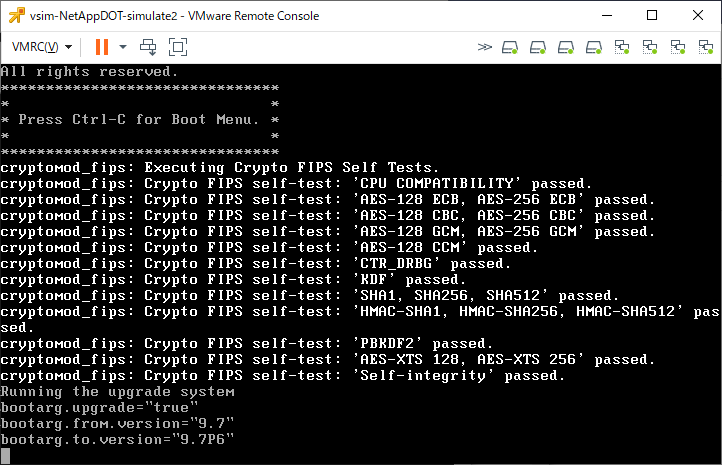
再起動が完了したら、「system image show」でIs DefaultとIs Currectが変更されていることを確認します。
nas01c::*> system image show
                 Is      Is                                Install
Node     Image   Default Current Version                   Date
-------- ------- ------- ------- ------------------------- -------------------
nas01c-01
         image1  false   false   9.7                       -
         image2  true    true    9.7P6                     9/2/2020 14:51:02
nas01c-02
         image1  true    true    9.7                       -
         image2  false   false   9.7P6                     9/2/2020 16:37:32
4 entries were displayed.
nas01c::*>
また「version -node *」を実行してOSバージョンが変更されていることを確認します。
nas01c::*> version -node *
nas01c-01  :
NetApp Release 9.7P6: Tue Jul 28 04:06:27 UTC 2020
nas01c-02  :
NetApp Release 9.7: Thu Jan 09 11:10:19 UTC 2020
2 entries were displayed.
nas01c::*>
その10 もう片側も同様に再起動
もう片側のノードにも同じ事を実行します。
途中は省略。
「system image show」を実行して、Is Default, Is Currectが両方とも変更されたことを確認。
nas01c::*> system image show
                 Is      Is                                Install
Node     Image   Default Current Version                   Date
-------- ------- ------- ------- ------------------------- -------------------
nas01c-01
         image1  false   false   9.7                       -
         image2  true    true    9.7P6                     9/2/2020 14:51:02
nas01c-02
         image1  false   false   9.7                       -
         image2  true    true    9.7P6                     9/2/2020 16:37:32
4 entries were displayed.
nas01c::*>
「version -node *」を実行して、両ノードのOSバージョンが変更されたことを確認。
nas01c::*> version -node *
nas01c-01  :
NetApp Release 9.7P6: Tue Jul 28 04:06:27 UTC 2020
nas01c-02  :
NetApp Release 9.7P6: Tue Jul 28 04:06:27 UTC 2020
2 entries were displayed.
nas01c::*>
トラブル事例
いきなり下記の様なメッセージが出力されて動かなくなりました。
nas01c::*>
The management gateway server restarted. Waiting to see if the connection can be reestablished.
The connection with the management gateway server has been reestablished.
If the root cause of the interruption was a process core, you can see the core file details by issuing the following command:
        system node coredump show -node local -type application -corename mgwd.* -instance
***********************
**  SYSTEM MESSAGES  **
***********************
CRITICAL: This node is not healthy because the root volume is low on space
(<10MB). The node can still serve data, but it cannot participate in cluster
operations until this situation is rectified. Free space using the nodeshell or
contact technical support for assistance.
nas01c::>
メッセージにある「system node coredump show」を実行してもなにもないなー
nas01c::> system node coredump show
This table is currently empty.
nas01c::>  system node coredump show -node local -type application -corename mgwd.* -instance
There are no entries matching your query.
nas01c::>
じゃぁ、ディスク容量はどうだ?
nas01c::> system node run -node nas01c-02 df
Filesystem              kbytes       used      avail capacity  Mounted on
/vol/vol0/             5976884    5974408       2476     100%  /vol/vol0/
/vol/vol0/.snapshot     314572    3254436          0     1035%  /vol/vol0/.snapshot
nas01c::>
snapshotが領域を超え、通常ボリュームに進出して使用量が100%となっていました。
snapshotを削除します。
現状のsnapshotを確認
nas01c::> system node run -node nas01c-02 snap list
Volume vol0
working...
  %/used       %/total  date          name
----------  ----------  ------------  --------
 50% (50%)   48% (48%)  Sep 02 16:02  hourly.0
 52% ( 6%)   52% ( 3%)  Sep 02 15:45  hourly.1
nas01c::>
snapshotを削除
nas01c::> system node run -node nas01c-02 snap delete vol0 hourly.0
nas01c::> system node run -node nas01c-02 snap delete vol0 hourly.1
nas01c::>
ディスク容量が空きました。
nas01c::> system node run -node nas01c-02 df
Filesystem              kbytes       used      avail capacity  Mounted on
/vol/vol0/             5976884    3029024    2947860      51%  /vol/vol0/
/vol/vol0/.snapshot     314572          0     314572       0%  /vol/vol0/.snapshot
nas01c::>
上記は「system node run -node ノード名 snap ~」で実行していますがONTAP OSの起動状況によっては「snap show ~」「snap delete ~」が使える場合もあります。
(dfコマンドを実行してちゃんとボリュームが表示される場合は使えるでしょう)
その場合、snap deleteコマンドの際にアスタリスクが使用できるので、全削除が簡単です。
下記はその実行例
nas01c::*> snap show
                                                                 ---Blocks---
Vserver  Volume   Snapshot                                  Size Total% Used%
-------- -------- ------------------------------------- -------- ------ -----
nas01c-01
         vol0
                  hourly.5                                1.37MB     0%    0%
                  hourly.4                               374.7MB     6%   10%
                  hourly.3                               316.9MB     5%    9%
                  hourly.2                               192.8MB     3%    5%
                  hourly.1                               245.9MB     4%    7%
                  hourly.0                               181.7MB     3%    5%
                  nightly.1                              276.1MB     4%    8%
                  nightly.0                              185.5MB     3%    5%
nas01c-02
         vol0
                  hourly.2                               107.8MB     2%    3%
                  hourly.1                               286.0MB     5%    8%
                  nightly.0                              252.2MB     4%    7%
                  hourly.0                               228.9MB     4%    6%
svm0     svm0_root
                  daily.2020-09-03_0010                    336KB     2%   39%
                  hourly.2020-09-03_0405                   128KB     1%   19%
                  hourly.2020-09-03_0505                   128KB     1%   19%
                                                                 ---Blocks---
Vserver  Volume   Snapshot                                  Size Total% Used%
-------- -------- ------------------------------------- -------- ------ -----
svm0     svm0_root
                  hourly.2020-09-03_0605                   364KB     2%   40%
                  hourly.2020-09-03_0854                   128KB     1%   19%
                  hourly.2020-09-03_0905                   128KB     1%   19%
                  hourly.2020-09-03_1005                   120KB     1%   18%
         testvol
                  daily.2020-09-03_0010                    152KB     0%    8%
                  hourly.2020-09-03_0505                   144KB     0%    8%
                  hourly.2020-09-03_0605                   152KB     0%    8%
                  hourly.2020-09-03_0705                   152KB     0%    8%
                  hourly.2020-09-03_0805                   164KB     0%    9%
                  hourly.2020-09-03_0905                   152KB     0%    8%
                  hourly.2020-09-03_1005                   144KB     0%    8%
26 entries were displayed.
nas01c::*> snap delete -vserver
    nas01c-01 nas01c-02 svm0
nas01c::*> snap delete -vserver nas01c-01 -volume vol0 -snapshot
    hourly.5  hourly.4  hourly.3  hourly.2  hourly.1  hourly.0  nightly.1
    nightly.0
nas01c::*> snap delete -vserver nas01c-01 -volume vol0 -snapshot *
Warning: Deleting a Snapshot copy permanently removes any data that is stored
         only in that Snapshot copy. Are you sure you want to delete Snapshot
         copy "hourly.5" for volume "vol0" in Vserver "nas01c-01" ?
          {y|n}: y
Warning: Deleting a Snapshot copy permanently removes any data that is stored
         only in that Snapshot copy. Are you sure you want to delete Snapshot
         copy "hourly.4" for volume "vol0" in Vserver "nas01c-01" ?
          {y|n}: y
Warning: Deleting a Snapshot copy permanently removes any data that is stored
         only in that Snapshot copy. Are you sure you want to delete Snapshot
         copy "hourly.3" for volume "vol0" in Vserver "nas01c-01" ?
          {y|n}: y
Warning: Deleting a Snapshot copy permanently removes any data that is stored
         only in that Snapshot copy. Are you sure you want to delete Snapshot
         copy "hourly.2" for volume "vol0" in Vserver "nas01c-01" ?
          {y|n}: y
Warning: Deleting a Snapshot copy permanently removes any data that is stored
         only in that Snapshot copy. Are you sure you want to delete Snapshot
         copy "hourly.1" for volume "vol0" in Vserver "nas01c-01" ?
          {y|n}: y
Warning: Deleting a Snapshot copy permanently removes any data that is stored
         only in that Snapshot copy. Are you sure you want to delete Snapshot
         copy "hourly.0" for volume "vol0" in Vserver "nas01c-01" ?
          {y|n}: y
Warning: Deleting a Snapshot copy permanently removes any data that is stored
         only in that Snapshot copy. Are you sure you want to delete Snapshot
         copy "nightly.1" for volume "vol0" in Vserver "nas01c-01" ?
          {y|n}: y
Warning: Deleting a Snapshot copy permanently removes any data that is stored
         only in that Snapshot copy. Are you sure you want to delete Snapshot
         copy "nightly.0" for volume "vol0" in Vserver "nas01c-01" ?
          {y|n}: y
8 entries were acted on.
nas01c::*> snap delete -vserver nas01c-02 -volume vol0 -snapshot *
Warning: Deleting a Snapshot copy permanently removes any data that is stored
         only in that Snapshot copy. Are you sure you want to delete Snapshot
         copy "hourly.2" for volume "vol0" in Vserver "nas01c-02" ?
          {y|n}: y
Warning: Deleting a Snapshot copy permanently removes any data that is stored
         only in that Snapshot copy. Are you sure you want to delete Snapshot
         copy "hourly.1" for volume "vol0" in Vserver "nas01c-02" ?
          {y|n}: y
Warning: Deleting a Snapshot copy permanently removes any data that is stored
         only in that Snapshot copy. Are you sure you want to delete Snapshot
         copy "nightly.0" for volume "vol0" in Vserver "nas01c-02" ?
          {y|n}: y
Warning: Deleting a Snapshot copy permanently removes any data that is stored
         only in that Snapshot copy. Are you sure you want to delete Snapshot
         copy "hourly.0" for volume "vol0" in Vserver "nas01c-02" ?
          {y|n}: y
4 entries were acted on.
nas01c::*> snap show
                                                                 ---Blocks---
Vserver  Volume   Snapshot                                  Size Total% Used%
-------- -------- ------------------------------------- -------- ------ -----
svm0     svm0_root
                  daily.2020-09-03_0010                    336KB     2%   39%
                  hourly.2020-09-03_0405                   128KB     1%   19%
                  hourly.2020-09-03_0505                   128KB     1%   19%
                  hourly.2020-09-03_0605                   364KB     2%   40%
                  hourly.2020-09-03_0854                   128KB     1%   19%
                  hourly.2020-09-03_0905                   128KB     1%   19%
                  hourly.2020-09-03_1005                   120KB     1%   18%
         testvol
                  daily.2020-09-03_0010                    152KB     0%    8%
                  hourly.2020-09-03_0505                   144KB     0%    8%
                  hourly.2020-09-03_0605                   152KB     0%    8%
                  hourly.2020-09-03_0705                   152KB     0%    8%
                  hourly.2020-09-03_0805                   164KB     0%    9%
                  hourly.2020-09-03_0905                   152KB     0%    8%
                  hourly.2020-09-03_1005                   144KB     0%    8%
14 entries were displayed.
nas01c::*>
トラブル事例2
アップデートを実行したところ「Failed to verify the signatures of the image.」で失敗した。
ontap97-sub::*> system image update -package http://~/patch/97P18_q_image.tgz
Warning: The recommended best-practice is to use the automated update procedure
         if you are attempting an upgrade or a minor version downgrade. Refer
         to the Clustered Data ONTAP Upgrade and Revert/Downgrade Guide for
         details.
Do you want to continue? {y|n}: y
Software update started on node ontap97-sub-01. Updating image2 with package http://.../97P18_q_image.tgz.
Downloading package. This may take up to 20 minutes.
100% downloaded
Download complete.
Listing package contents.
Decompressing package contents.
Verifying package signature.
Install Failed.
Failed to verify the signatures of the image. The image may have been corrupted.
Replace the image, and then try the command again.
Error: command failed: Install Failed. Failed to verify the signatures of the
       image. The image may have been corrupted. Replace the image, and then
       try the command again.
ontap97-sub::*>
最初、ダウンロードしたファイルが壊れていたのかなどを確認していたが、結局はvol0の空き容量問題で失敗していただけだった。
最終的にvol0を5GBとすることで成功した。
vol0 3GBの際
vol0 3GBの時は、アップデータのダウンロードで失敗していた。
ontap97-sub::*> system image update -package http://~/patch/97P14_q_image.tgz
Warning: The recommended best-practice is to use the automated update procedure
         if you are attempting an upgrade or a minor version downgrade. Refer
         to the Clustered Data ONTAP Upgrade and Revert/Downgrade Guide for
         details.
Do you want to continue? {y|n}: y
Software update started on node ontap97-sub-01. Updating image2 with package http://.../97P14_q_image.tgz.
Downloading package. This may take up to 20 minutes.
Install Failed.
Cannot update or install image because the system management storage area is
almost out of space. To make space available, delete old Snapshot copies. For
further assistance, contact technical support.
Error: command failed: Install Failed. Cannot update or install image because
       the system management storage area is almost out of space. To make space
       available, delete old Snapshot copies. For further assistance, contact
       technical support.
ontap97-sub::*>
このときのvol0の空き容量を「df -h /vol/vol0」で確認したところ、97P14_q_image.tgz (2465KB)をおけるだけのスペースがありませんでした。
また、verifyではgzip圧縮を展開するようで、より空き容量が必要とされていました。
ひとまず、vol0 5GBで成功しましたが、やはり余裕をみて6GBあった方がいいと思います。
あえて地雷踏み事例
ONTAP 8.3.2シミュレータ環境をONTAP 8.3.2P12にアップデートした後
ONTAP 9.1P19アップデートファイルを適用してみたらどうなるかを実験。
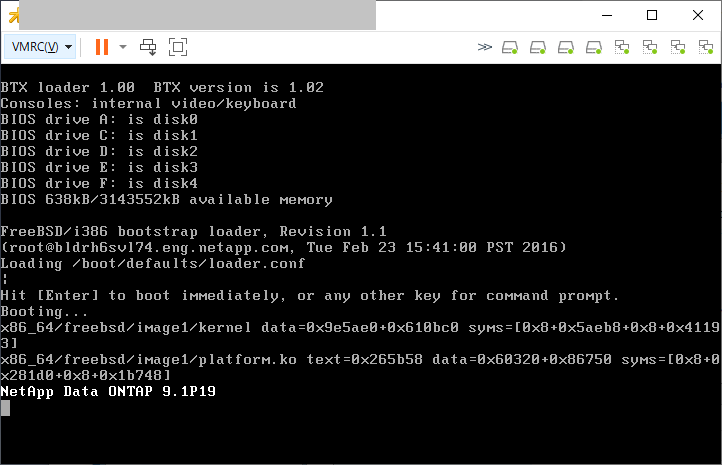
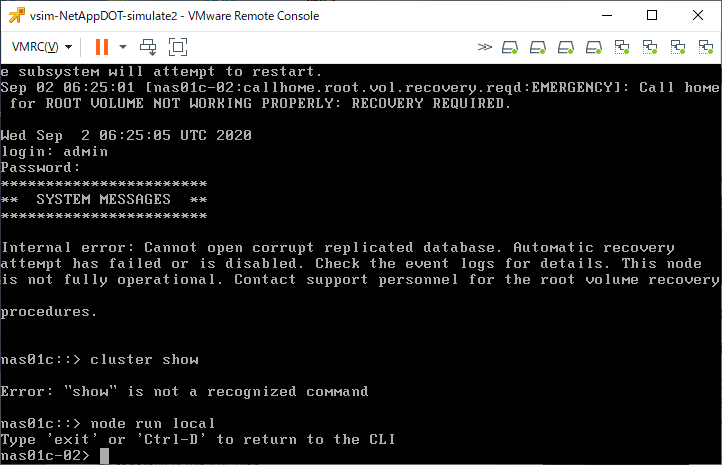
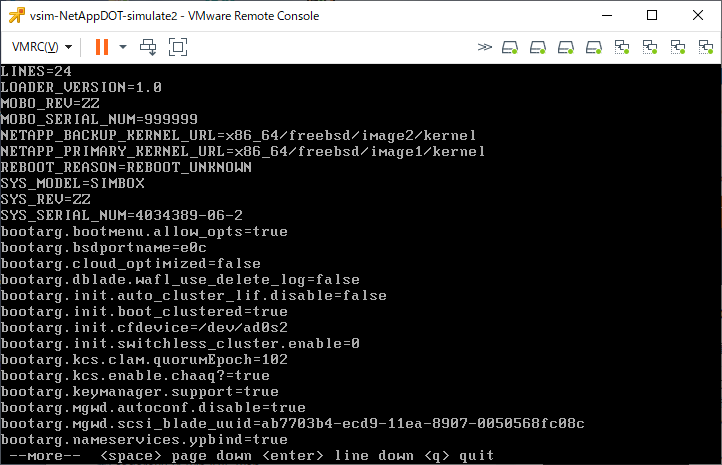
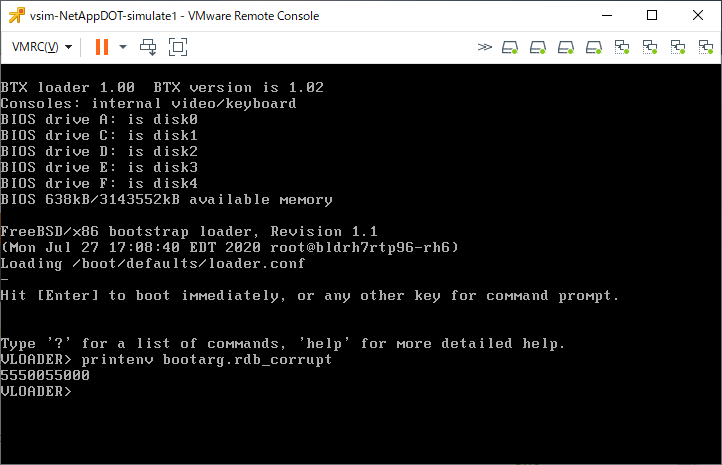
上記を出力したあと、再起動を繰り替えるというリブートループに突入しました。
地雷試験2
ONTAPシミュレータのONTAP 9.9.1を普通のONTAP用のアップデータを使ってONTAP 9.10.1P6にアップデートする実験を行った
Webからアップデートを行う際は「system image show-update-progress」と「cluster image show-update-progress」で実行状況を確認することができる。
vol0の容量を10GBぐらいにしている場合、ONTAP9.10.1P6へのアップデートは成功した。途中のディスク使用量みた感じだと8GBぐらいでも成功しそうな感じだった。
ただ、アップデート後、Web GUIが英語表記のみとなり日本語表記に設定できなくなっている。
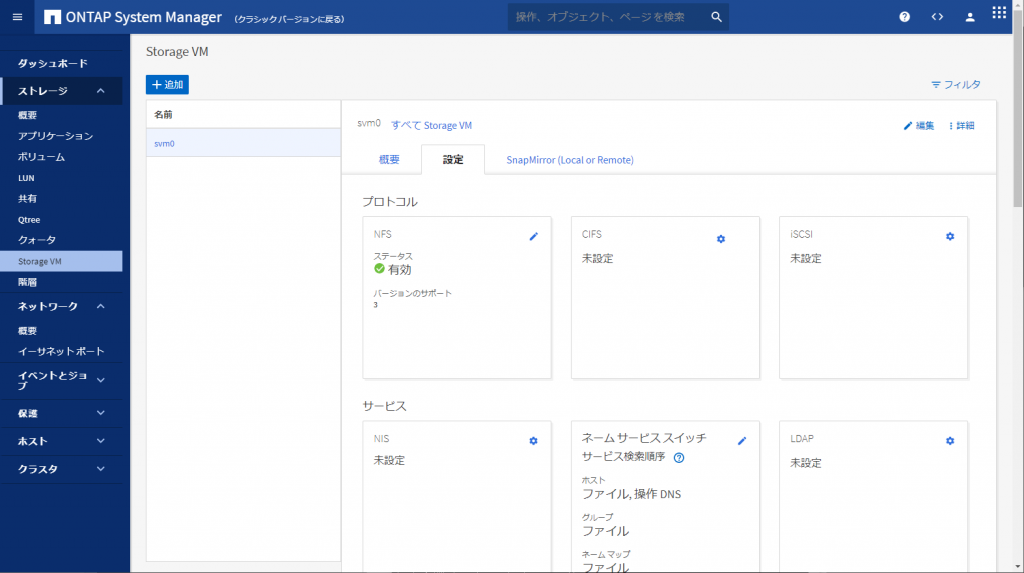
あと、「Automatic Update」という設定が追加されており、ONTAP OSの自働バージョンアップっぽいものができるようになった模様
cluster imageコマンドを使った手順
その1 現状利用できるパッケージがあるか確認
「cluster image package show-repository」を実行してイメージファイルがあるか確認
netapp9101dr::> cluster image package show-repository
There are no packages in the repository.
netapp9101dr::>
その2 イメージファイルのアップロード
「cluster image package get -url http://~/9101P12_q_image.tgz」といった形でファイルをONTAP内に取り込む
(ブラウザからは直接ファイルをアップロードできるが、コマンドの場合はWebサーバを経由するなどして送りこむ必要がある。
netapp9101dr::> cluster image package get -url http://~/9101P12_q_image.tgz
Package download completed.
Package processing completed.
netapp9101dr::>
その3 イメージファイルの確認
「cluster image package show-repository」を実行して確認
netapp9101dr::> cluster image package show-repository
Package Version  Package Build Time
---------------- ------------------
9.10.1P12        4/13/2023 09:30:59
netapp9101dr::>
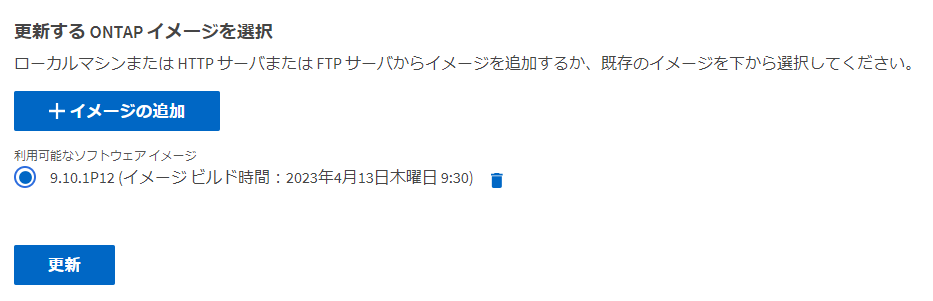
Web側でみると下記の様になっている
その4 現状のイメージを確認
netapp9101dr::> cluster image show
Node                 Current Version         Installation Date
-------------------- ----------------------- -------------------
netapp9101dr-01      9.10.1                  -
netapp9101dr::>
その5 アップデートが実行できるかチェック
まず「cluster image validate -version バージョン」を実行して検証します。
netapp9101dr::> cluster image validate -version 9.10.1P12
It can take several minutes to complete validation...
WARNING: There are additional manual upgrade validation checks that must be performed after these automated validation checks have completed successfully.
Refer to the Upgrade Advisor Plan or the "What should I verify before I upgrade with or without Upgrade Advisor" section in the "Upgrade ONTAP" documentation for the remaining manual validation checks that need to be performed before update.
Upgrade ONTAP documentation available at: https://docs.netapp.com/us-en/ontap/upgrade/index.html
The list of checks are available at: https://docs.netapp.com/us-en/ontap/upgrade/task_what_to_check_before_upgrade.html
Failing to do so can result in an update failure or an I/O disruption.
Please use Interoperability Matrix Tool (IMT  http://mysupport.netapp.com/matrix) to verify host system supportability configuration information.
Validation checks started successfully.  Run the "cluster image show-update-progress" command to check validation status.
netapp9101dr::>
これは検証の開始された、という状態で、しばらく経ってから「cluster image show-update-progress」を実行し、検証が終わったことを確認します。
netapp9101dr::> cluster image show-update-progress
                                             Estimated         Elapsed
Update Phase         Status                   Duration        Duration
-------------------- ----------------- --------------- ---------------
Pre-update checks    completed                00:10:00        00:00:30
Details:
Pre-update Check     Status            Error-Action
-------------------- ----------------- --------------------------------------
Manual checks        Warning           Warning: Manual validation checks
                                       need to be performed. Refer to the
                                       Upgrade Advisor Plan or the "What
                                       should I verify before I upgrade with
                                       or without Upgrade Advisor" section
                                       in the "Upgrade ONTAP" documentation
                                       for the remaining validation checks
                                       that need to be performed before
                                       update. Failing to do so can result
                                       in an update failure or an I/O
                                       disruption.
                                       Action: Refer to the Upgrade Advisor
                                       Plan or the "What should I verify
                                       before I upgrade with or without
                                       Upgrade Advisor" section in the
                                       "Upgrade ONTAP" documentation for the
                                       remaining validation checks that need
                                       to be performed before update.
                                             Estimated         Elapsed
Update Phase         Status                   Duration        Duration
-------------------- ----------------- --------------- ---------------
Pre-update checks    completed                00:10:00        00:00:30
Details:
Pre-update Check     Status            Error-Action
-------------------- ----------------- --------------------------------------
NFS mounts           Warning           Warning: This cluster is serving NFS
                                       clients. If NFS soft mounts are used,
                                       there is a possibility of frequent
                                       NFS timeouts and race conditions that
                                       can lead to data corruption during
                                       the upgrade.
                                       Action: Use NFS hard mounts, if
                                       possible. To list Vservers running
                                       NFS, run the following command:
                                       vserver nfs show
2 entries were displayed.
netapp9101dr::>
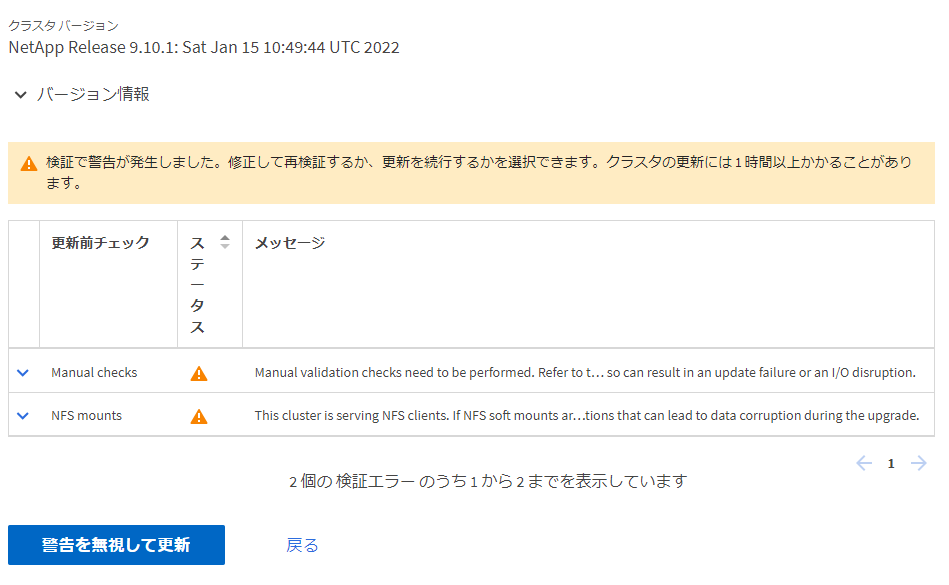
Web側では下記の様になっています
その6 警告無視してアップデート
「Manual checks」と「NFS mounts」については無視しても実用上たいした問題ではないので、そのままアップデートを強行するため「cluster image update -version バージョン」を実行します。
netapp9101dr::> cluster image update -version 9.10.1P12
Starting validation for this update...
上記でしばらくとまったあと
netapp9101dr::> cluster image update -version 9.10.1P12
Starting validation for this update...
It can take several minutes to complete validation...
WARNING: There are additional manual upgrade validation checks that must be performed after these automated validation checks have completed successfully.
Refer to the Upgrade Advisor Plan or the "What should I verify before I upgrade with or without Upgrade Advisor" section in the "Upgrade ONTAP" documentation for the remaining manual validation checks that need to be performed before update.
Upgrade ONTAP documentation available at: https://docs.netapp.com/us-en/ontap/upgrade/index.html
The list of checks are available at: https://docs.netapp.com/us-en/ontap/upgrade/task_what_to_check_before_upgrade.html
Failing to do so can result in an update failure or an I/O disruption.
Please use Interoperability Matrix Tool (IMT  http://mysupport.netapp.com/matrix) to verify host system supportability configuration information.
Pre-update Check      Status     Error-Action
--------------------- ---------- --------------------------------------------
Manual checks         Warning    Warning: Manual validation checks need to
                                 be performed. Refer to the Upgrade Advisor
                                 Plan or the "What should I verify before I
                                 upgrade with or without Upgrade Advisor"
                                 section in the "Upgrade ONTAP"
                                 documentation for the remaining validation
                                 checks that need to be performed before
                                 update. Failing to do so can result in an
                                 update failure or an I/O disruption.
                                 Action: Refer to the Upgrade Advisor Plan
                                 or the "What should I verify before I
                                 upgrade with or without Upgrade Advisor"
                                 section in the "Upgrade ONTAP"
                                 documentation for the remaining validation
                                 checks that need to be performed before
                                 update.
NFS mounts            Warning    Warning: This cluster is serving NFS
                                 clients. If NFS soft mounts are used, there
                                 is a possibility of frequent NFS timeouts
                                 and race conditions that can lead to data
                                 corruption during the upgrade.
                                 Action: Use NFS hard mounts, if possible.
                                 To list Vservers running NFS, run the
                                 following command: vserver nfs show
Overall Status        Warning
3 entries were displayed.
Warning: Validation has reported warnings.
Warning: This is a single node cluster and the update will be disruptive.
Do you want to continue? {y|n}:
「y」を入力してアップデートを実施します。
Do you want to continue? {y|n}: y
Starting update...
Info: Run the "cluster image show-update-progress" command to check update status.
netapp9101dr::>
アップデートの進捗状況は「cluster image show-update-progress」を実行して確認します。
netapp9101dr::> cluster image show-update-progress
                                             Estimated         Elapsed
Update Phase         Status                   Duration        Duration
-------------------- ----------------- --------------- ---------------
Pre-update checks    completed                00:10:00        00:00:30
ONTAP updates        in-progress              00:45:00        00:00:04
Details:
Node name            Status            Status Description
-------------------- ----------------- --------------------------------------
netapp9101dr-01      in-progress       Installing ONTAP software image.
3 entries were displayed.
netapp9101dr::>
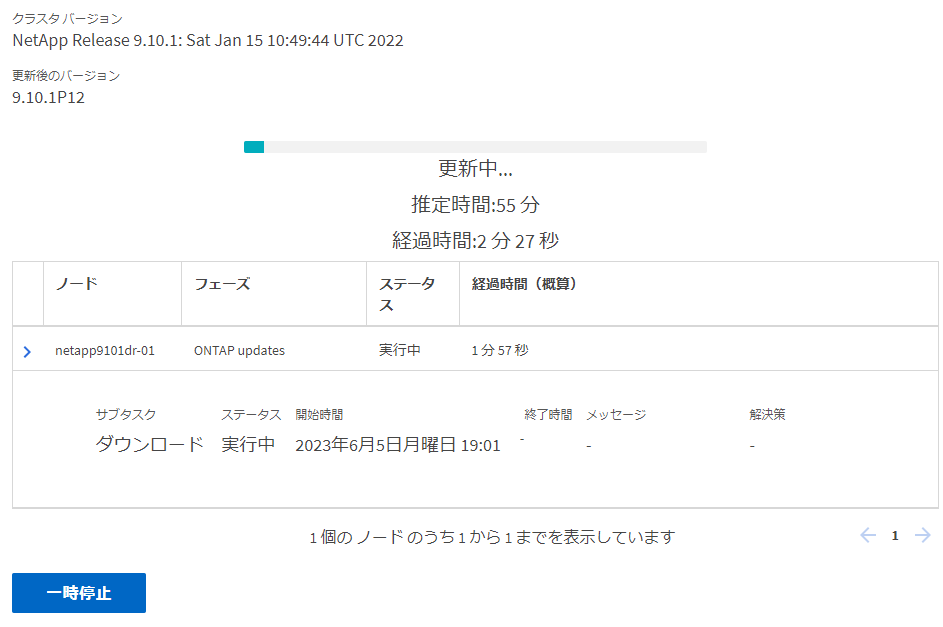
Web側はこの状況です
その7 終了確認
「cluster image show-update-progress」「version *」「cluster image show」を実行し、アップデートが実行できたかを確認
netapp9101dr::> cluster image show-update-progress
                                             Estimated         Elapsed
Update Phase         Status                   Duration        Duration
-------------------- ----------------- --------------- ---------------
Pre-update checks    completed                00:10:00        00:00:30
ONTAP updates        completed                00:45:00        00:12:10
Post-update checks   completed                00:10:00        00:00:04
3 entries were displayed.
Updated nodes: netapp9101dr-01.
netapp9101dr::> version *
netapp9101dr-01:
NetApp Release 9.10.1P12: Thu Apr 13 00:30:59 UTC 2023
netapp9101dr::> cluster image show
Node                 Current Version         Installation Date
-------------------- ----------------------- -------------------
netapp9101dr-01      9.10.1P12               6/5/2023 19:07:38
netapp9101dr::>
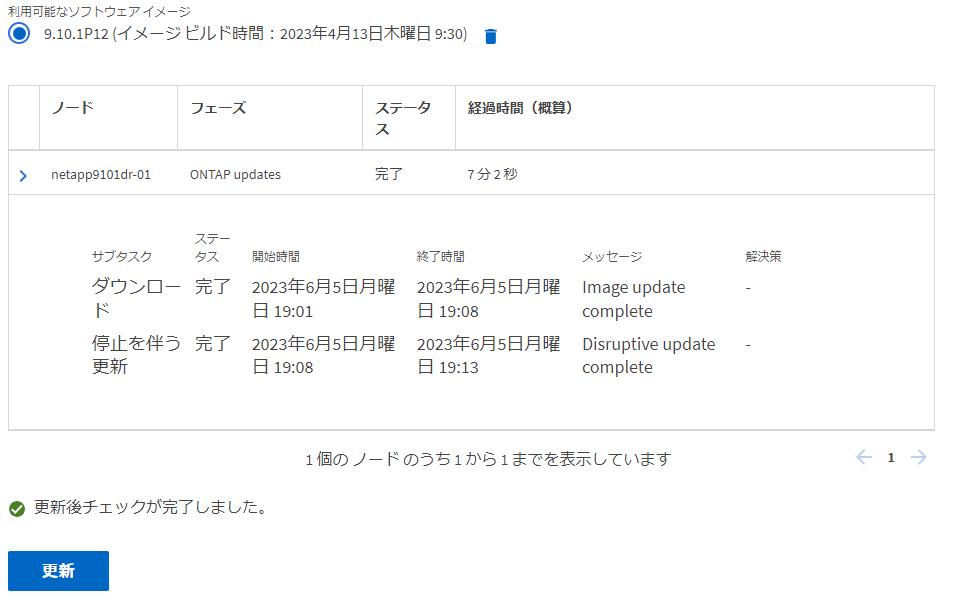
Web側の表示
アップデート履歴を確認する場合は「cluster image show-update-history」を実行
netapp9101dr::> cluster image show-update-history
           Package   Start      Completion              Previous  Updated
Status     Version   Time       Time       Component ID Version   Version
---------- --------- ---------- ---------- ------------ --------- ---------
successful 9.10.1P12 6/5/2023   6/5/2023   netapp9101dr 9.10.1    9.10.1P12
                     19:01:05   19:13:15   -01
netapp9101dr::> cluster image show-update-history  -ins
    Component ID: netapp9101dr-01
      Start Time: 6/5/2023 19:01:05
 Package Version: 9.10.1P12
          Status: successful
 Completion Time: 6/5/2023 19:13:15
Previous Version: 9.10.1
 Updated Version: 9.10.1P12
netapp9101dr::>
なお、アップデートに使用したファイルはvol0領域を2GB~3GB使用するため削除しましょう
netapp9101dr::> cluster image package show
Package Version  Package Build Time
---------------- ------------------
9.10.1P12        4/13/2023 09:30:59
netapp9101dr::> cluster image package
    delete          get             show-repository
netapp9101dr::> cluster image package delete -version 9.10.1P12
Package Delete Operation Completed Successfully
netapp9101dr::> cluster image package show
There are no packages in the repository.
netapp9101dr::>